

Members
Manage team members, invite users, and control roles in your workspace.
The Members page lets you manage who has access to your workspace. You can view current team members, invite new ones, manage pending invitations, and review pending requests.
My team
The My team tab displays all current members of your workspace along with their roles and join dates. You can search for specific members using the search bar.
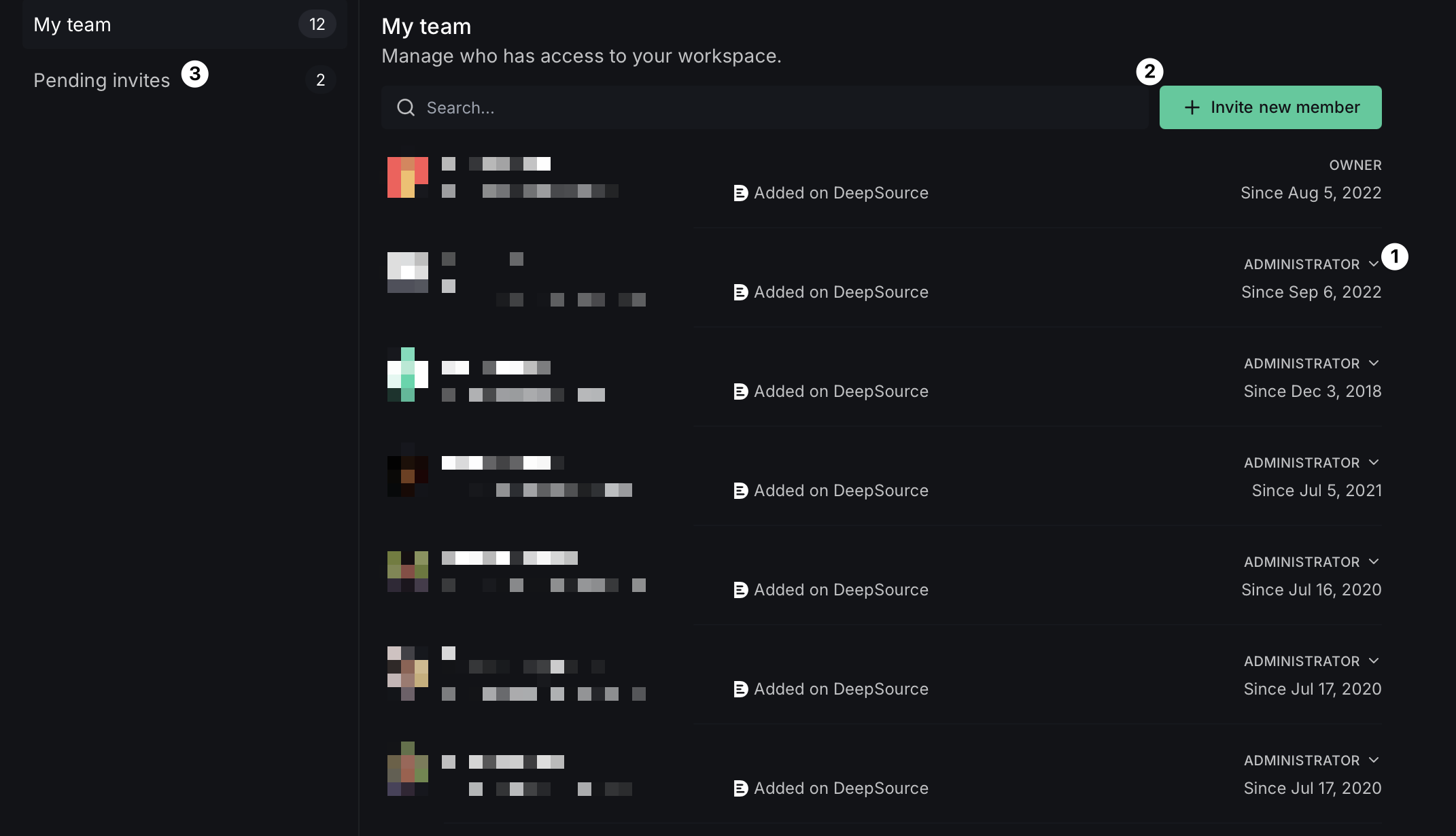
Each member's entry shows:
- Their name and avatar
- How they were added (e.g., "Added on DeepSource")
- When they joined (e.g., "Since Aug 5, 2022")
- Their current role (Owner, Administrator, Member, or Contributor)
Role permissions
| Capability | Owner | Administrator | Member | Contributor |
|---|---|---|---|---|
| View issues and analysis results | Yes | Yes | Yes | Yes |
| Fix issues and create Autofixes | Yes | Yes | Yes | No |
| Manage repository settings | Yes | Yes | No | No |
| Manage team members and billing | Yes | Yes | No | No |
| Transfer ownership | Yes | No | No | No |
| Counts toward billing | Yes | Yes | Yes | No |
Contributors are visible in the My team list at the workspace level, but they do not appear in repo-level collaborator lists. To give a Contributor access to a specific repository's analysis, promote them to Member or Administrator, or ensure they have repository access through your VCS provider.
To change a member's role, click on the role dropdown next to their name and select the new role. To remove a member, select Remove from team from the same dropdown.
If you have Automatic Sync with GitHub enabled, removing a member from your GitHub organization also removes them from the corresponding team on DeepSource.
Invite new members
Click the Invite new member button to open the invite dialog. You can invite members via email or by sharing an invitation link.
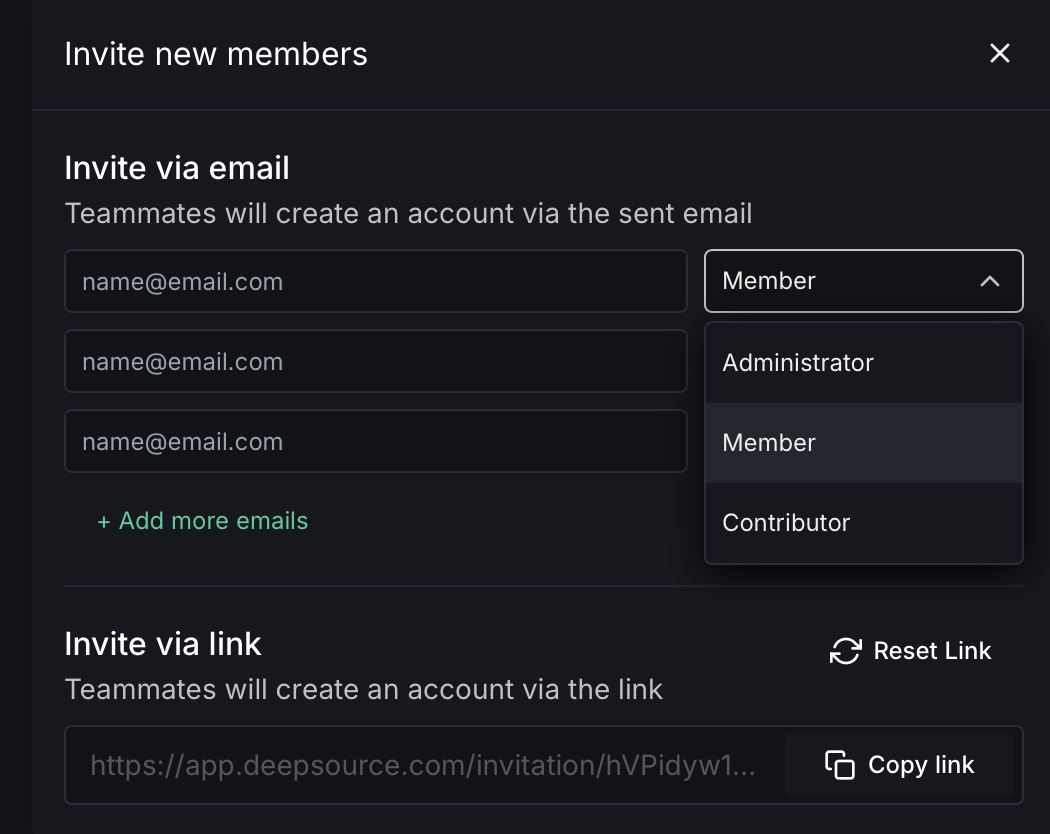
Via email
- Enter the email addresses of the users you want to invite.
- Choose the appropriate role for each user: Administrator, Member, or Contributor. See Permission levels for teams for details on each role.
- Click + Add more emails to invite multiple users at once.
- The invited users will receive an email with instructions to join your team.
Via invitation link
- Copy the invitation link shown in the Invite via link section.
- Share the link with the users you want to invite.
- When they sign up using this link, a request to join the team is created. An admin must approve it from the Pending requests tab.
Click Reset Link to generate a new invitation link. This revokes the previous link.
Each member who commits code counts as a committer toward your billing. On private repositories, the DeepSource check fails with "Committer is not a member of the team on DeepSource" when a commit author or PR opener is not part of the team — a team admin must add them as a Member or Administrator before analysis runs. See Billing for details.
Pending invites
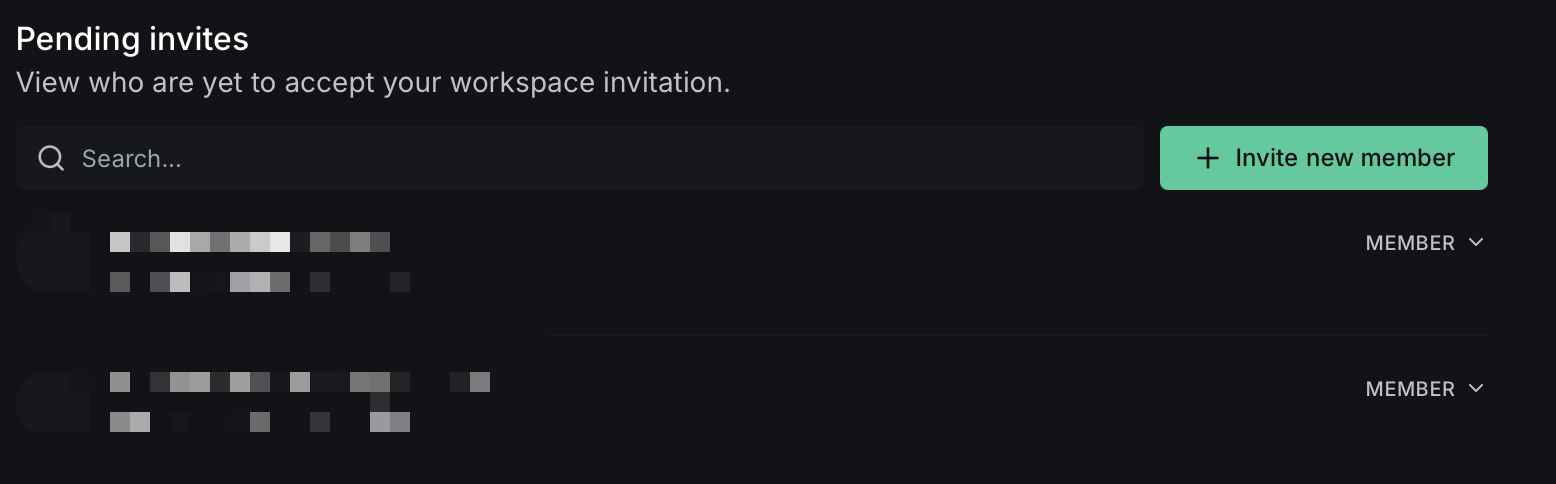
The Pending invites tab lets you view who are yet to accept your workspace invitation. You can view their email addresses, assigned roles, and re-send or cancel invitations as needed.
Pending requests
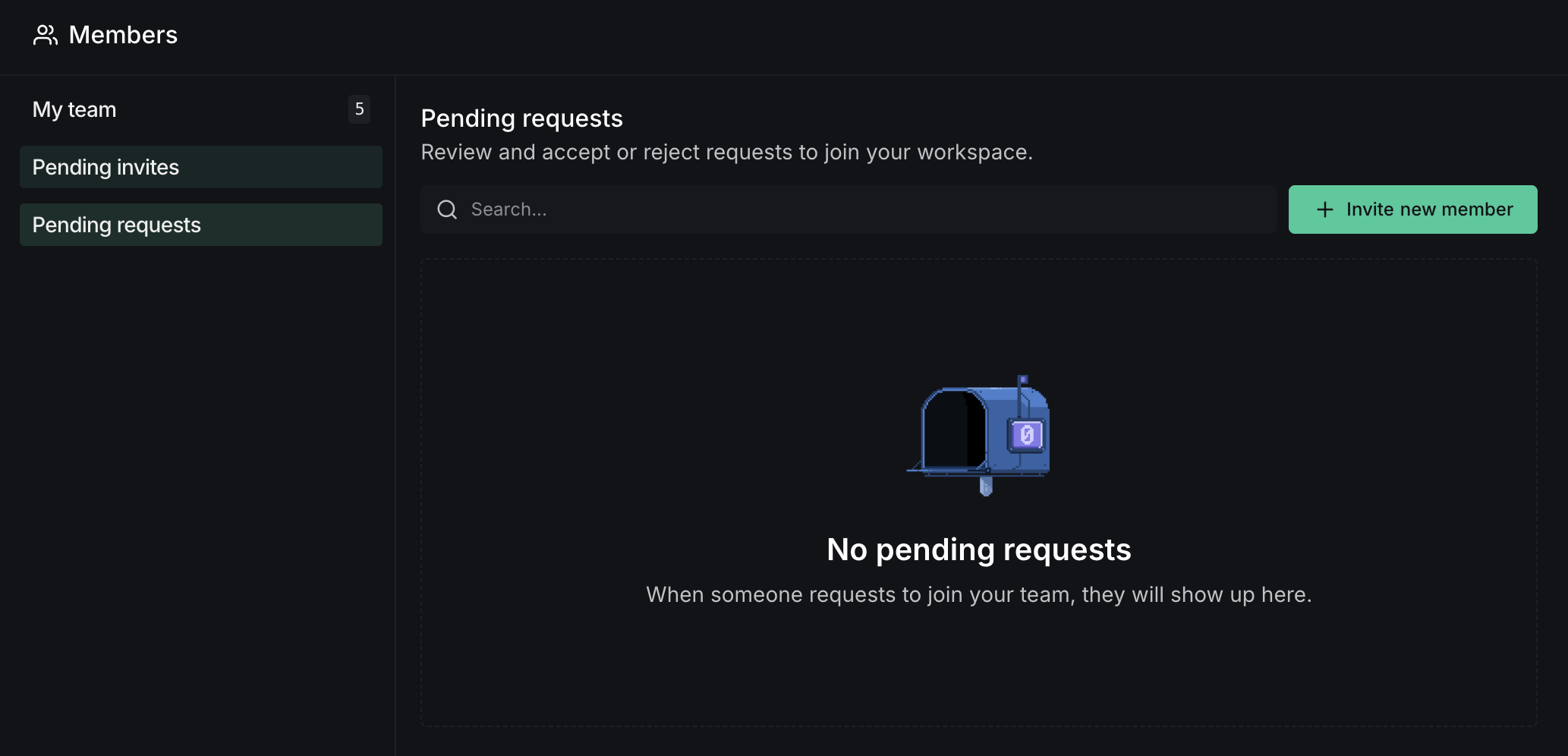
The Pending requests tab shows requests from users who want to join your workspace. Requests appear here when a user clicks "request access" from a DeepSource bot comment on a pull request, or when someone signs up using the team invitation link.
Admins can approve or reject requests from this tab.
Transfer ownership
An Owner can transfer ownership of the team to another member:
- Go to the My team tab.
- Find your own entry (marked as Owner).
- Click on Owner to open the options and select Transfer ownership.
- Select the member you want to transfer ownership to.
- Confirm the transfer by verifying your email address and completing the required fields.